Firefox
To further isolate the work environment with your personal workspace, use Firefox Profile Manager to provide separate instances of Firefox.
Each instance of Firefox can setup their own FoxyProxy configuration to do proxying via URL path based routing.
Profile Setup
In Firefox, you can get to Profile Manager by typing in "about:profiles" in the browser tab.
Alternatively, if you've installed firefox in a default location, you can setup the Profile Manager by running the following:
-
In Linux, run firefox -p, and append a ampersand & if you want to run firefox as a background process.
-
In Windows, run "C:\Program Files\Mozilla Firefox\firefox.exe" -profilemanager.
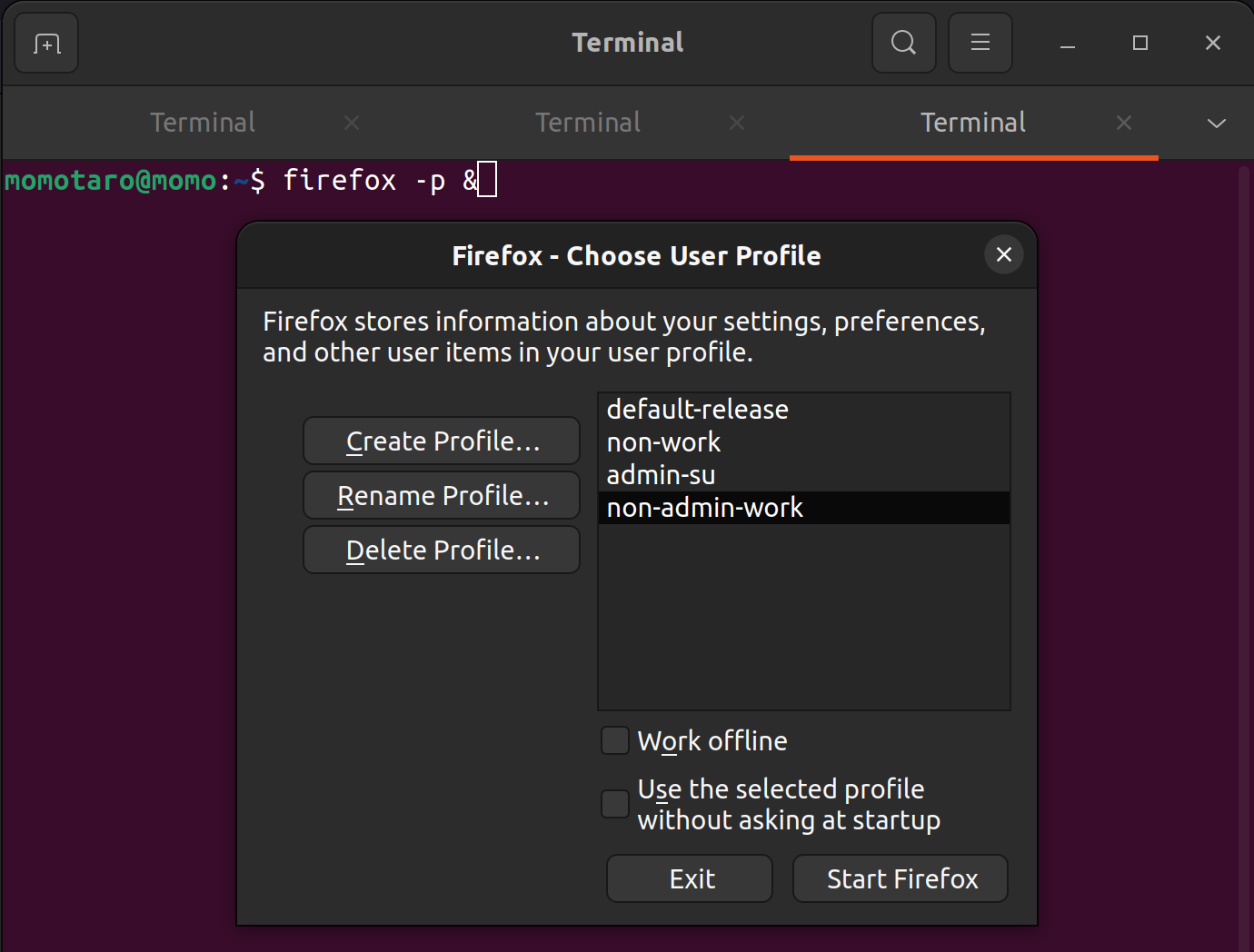
For additional documentation, Mozilla has a guide on the specific usage of Profile Manager.
Recognizing the Browsers
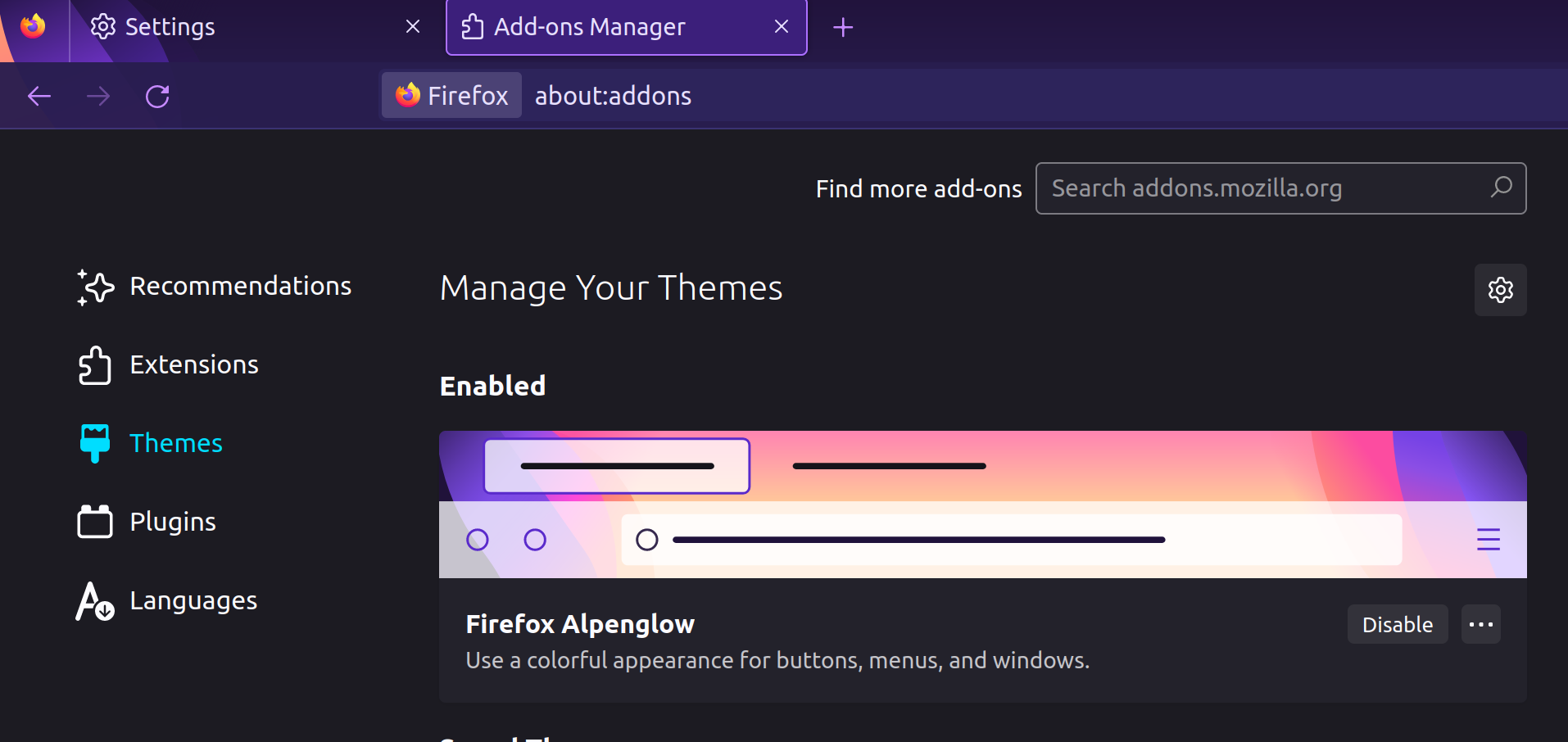
With multiple profiles of Firefox, it becomes difficult to distinguish which profile they're intended for and you end up mixing and matching firefox instances with admin access with non-admin access. Theming the the browser is a way to recognize the browser you use easier.
For example, I might choose to use a white menu theme for cloud logins, and a purple menu theme for administrative account access.
To set up themes, go to Firefox settings or go straight to the browser address bar, and type in about:addons. Navigate to Themes to select your theme for the browser.
Spoofing User Agent as Chrome
Some internal sites or proxies enforce browser policy by checking the User-Agent header and may block or limit Firefox. You can override Firefox's user agent to present itself as Chrome on Windows.
- In the address bar, type about:config and accept the risk warning.
- Search for general.useragent.override. If the preference does not exist, right-click anywhere on the list and select New → String, then name it
general.useragent.override. - Set the value to the Chrome user agent string. The latest Chrome on Windows looks like:
Mozilla/5.0 (Windows NT 10.0; Win64; x64) AppleWebKit/537.36 (KHTML, like Gecko) Chrome/147.0.0.0 Safari/537.36
The version number (147.0.0.0) advances with each Chrome stable release. Check Chrome's latest stable release to keep the string current, or look up your active Chrome install under chrome://settings/help.
To revert to Firefox's default user agent, return to about:config, find general.useragent.override, and delete the preference entirely.